Batch Update
SIM Grid - Export
CMP provides Users multiple options to export the content of the SIM Grid either into a CSV or an XLS file, which can subsequently be used in Excel or loaded into other applications. Users have the option to export either all SIM Cards that match the defined filter criteria or only a selection of them. Depending on the context level, different export options can be available.
The export files can also be used as input for the Batch Update function (for details see next section).
To learn more about the SIM export, see the SIM Grid - Export section of the SIM Card Management page.
General Description - SIM Export Fields
The following table lists all fields available for export and marks as well the ones that can be changed via Batch Upload functionality.
Field | Description | Changeable via Batch Upload | Comment |
|---|---|---|---|
EID | Unique identifier of the eSIM. By clicking on the EID, the grid will search and show all the eSIM Profiles linked to the EID. | no | The EID column is only populated if the ICCID is of Type 'eSIM Profile'. |
ICCID | Integrated Circuit Card Identifier, which is unique to each SIM Card. | no (SIM Card identifier) | Note: The values in these fields are the unique identifier of the SIM Cards to be changed via Batch Upload. Correspondingly the CSV column has to be bound to the Header 'ICCID' before data upload, although the value cannot be changed |
Type | Type of the SIM. Available values are: 'SIM', 'eSIM', 'eSIM Profile'. | no | Only available if the eSIM feature is enabled on the CMP instance. |
IMSI | Mobile Station International Subscriber Directory Number | no | |
MSISDN | International Mobile Subscriber Identity | no | |
Billing Status | Billing Status of the SIM at the time of file creation. | YES | For Batch Upload please bind to 'SIM Billing Status' Header For Billing Status, internal ENUM values (e.g. IN-BILLINGm SUSPENDED) are used in the SIM Grid export, which can be used for Batch Updates. |
Data Session | Indicates whether a SIM is in an active data session at the time of file creation | no | |
Active Price Plan | The Price Plan assigned to the SIM at the time of file creation. | YES | For Batch Upload please bind to 'Price Plan' Header |
Base Price Plan | The Base Price Plan is the permanent Price Plan assigned to the SIM and the Price Plan the SIM will move back to at the end of the Billing Cycle. | no | |
Usage Limit Override | Defines the SIM behavior, when the SIM reaches the monthly data limit, which is defined at the Platform. | YES | For Batch Upload please bind to 'Usage Limit Override' Header For Usage Limit Override, internal ENUM values (DISABLED, ENABLED) are used in the SIM Grid export, which can be used for Batch Updates. Note that the Usage Limit Override field is only available in the export file in case the related feature is enabled on the CMP instance. |
Prepaid Overage Enabled | Defines whether Prepaid Overage is enabled for the SIM Card. | YES | For Batch Upload please bind to 'Prepaid Overage Enabled' Header Prepaid Overage is only applicable to SIM Cards that have a Prepaid Price Plan assigned. For Prepaid Overage Enabled, internal ENUM values (TRUE, FALSE) are used in the SIM Grid export, which can be used for Batch Updates. Note that the Prepaid Overage Enabled field is only available in the export file in case the related feature is enabled on the CMP instance. |
RAT Type | RAT Type defines the physical connection method to a wireless communication network. | no | |
Data Volume | The cumulative volume of all completed data sessions during the current Billing Cycle at the time of file creation | no | |
SMS MO Count | The number of SMS messages sent by the SIM's device during the current Billing Cycle | no | |
SMS MT Count | The number of SMS messages received by the SIM's device during the current Billing Cycle | no | |
Voice MO Duration | The duration of Voice MO (i.e. mobile originated) calls during the current Billing Cycle | no | |
Voice MT Duration | The duration of Voice MT (i.e. mobile terminated) calls during the current Billing Cycle | no | |
Country (code) | The name and ISO code of the Country in which the last recorded data or SMS session took place. | no | |
Assignment/ | Date when SIM was assigned to the Account or activated (moved automatically during Account assignment or later manually to In Testing or In Billing) | no | Date is displayed in the Time Zone of the CMP instance (UTC by default) |
Account | The Account to which the SIM is assigned. | YES | For Batch Upload please bind to 'Group' Header Note: The Batch Upload function allows to assign a SIM to another SIM Group belonging to the respective Account, Moving to another Account or Sub-Account is not supported by this function. |
Customer | The Customer to which the SIM is assigned. | no | The field is only filled in case the SIM Card is assigned to a Customer. Note that the Customer field is only available in case the SIM Grid export is created in Account context. |
Device | Device assigned to the SIM | no | |
Roaming Profile | Roaming Profile assigned to the SIM, which defines which networks the SIM is allowed to use | YES | For Batch Upload please bind to 'Roaming Profile' Header |
APN Group | APN Group assigned to the SIM Card | YES | For Batch Upload please bind to 'APN Group' Header |
APN & Static IP*1 | Access Point Name(s) and possible Static IP Address(es) assigned to the SIM Card | no | |
Data Session IMEI | IMEI used on the last data session of the SIM Card | no | |
Service Profile | Service Profile assigned to the SIM defining the list of services available for the SIM (e.g. 2G or 4G data, SMS MO) | YES | For Batch Upload please bind to 'SIM Service Profile' Header |
SIMaS Username*3 | SIM Authentication Service (SIMaS) username. | YES | For Batch Upload please bind to 'SIMaS Username' Header |
SIMaS Password*3 | SIM Authentication Service (SIMaS) password. | YES | For Batch Upload please bind to 'SIMaS Password' Header. In order to ensure security, SIMaS Password is not included in the export; however, together with SIMaS Usernames, Passwords can be imported into CMP using the Batch Update capability. Any existing Username and Password values will be overwritten by the import. |
Custom Attribute name x*2 | The value of the custom Attribute for the SIM Card | YES | For Batch Upload please bind to '(Custom Attribute) {Custom Attribute name x}' Header |
Username in Batch file | Password in Batch file | Action in Postgres and Redis |
|---|---|---|
VALUE | VALUE | Update Username and Password |
VALUE | NULL | Reset to First Use |
VALUE | Field/Column Not Present | Update Username |
NULL | VALUE | Update Password if credentials already present, otherwise ignore |
NULL | NULL | Reset to First Use |
NULL | Field/Column Not Present | No Action / Ignore |
Field/Column Not Present | VALUE | Update Password if credentials already present, otherwise ignore |
Field/Column Not Present | NULL | Reset to First Use |
Update Batch Files - Export and Import
Note:
The Batch Update option is only available in Account context.
Batch Update allows Users to change the properties of larger amounts of SIM Cards at once (e.g. change the APN and Service Profile for 200 SIM Cards). Note, that any updated fields related to a predefined resource (APN, Service Profile, etc.) must correspond to a resource which already exists within the CMP and must be available to your Account level. It is also necessary to use the correct spelling.
Example
If only ExampleAPN1 and ExampleAPN2 are available to your Account, a Batch Update attempt with any other APN name will be unsuccessful.
Users have two options to do the Batch Update of SIM Cards, either the export file of the SIM Grid or the User's own file can be used as the input of the Batch Update.
Batch Update with an export file as input
To use the export file as input for Batch Update:
- Export the content of the SIM Grid using the content of the Export option in the SIM Grid.
- Overwrite the information that you want to change for all the SIM Cards involved( e.g. overwrite the APN and Service Profile information for 200 SIM Cards).
Note: Batch Update does not allow you to modify all of a SIM's attributes. Refer to the General Description - SIM Export Fields table above for a list of properties that can be changed using Batch Update. - Save as a CSV file.
- Click the Import from CSV
 icon in the Object Functions Menu.
Note: The Import from CSV option completes the same functions as the Batch Update subtopic available in the side menu bar. - Define a Delimiter and Skip N Rows for the CSV data.

- Click on Click to specify to bind the columns of the selected file to the corresponding headers of the SIM Grid.
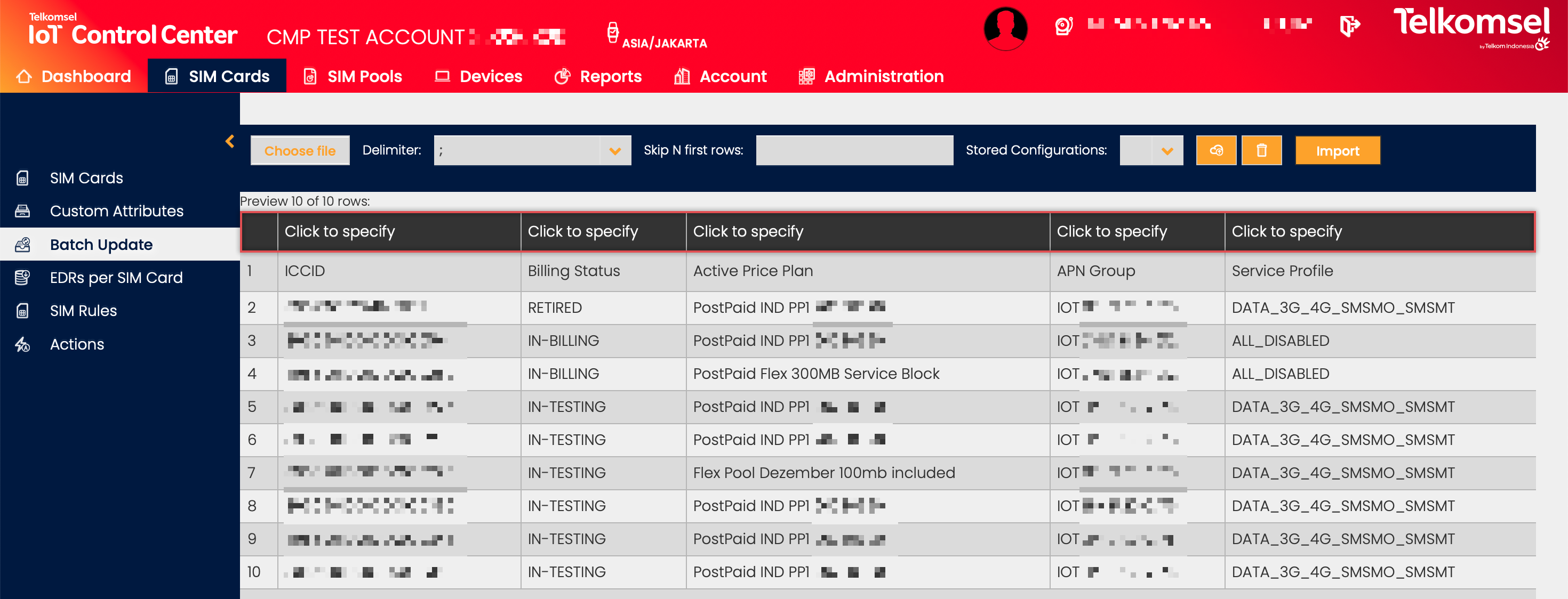
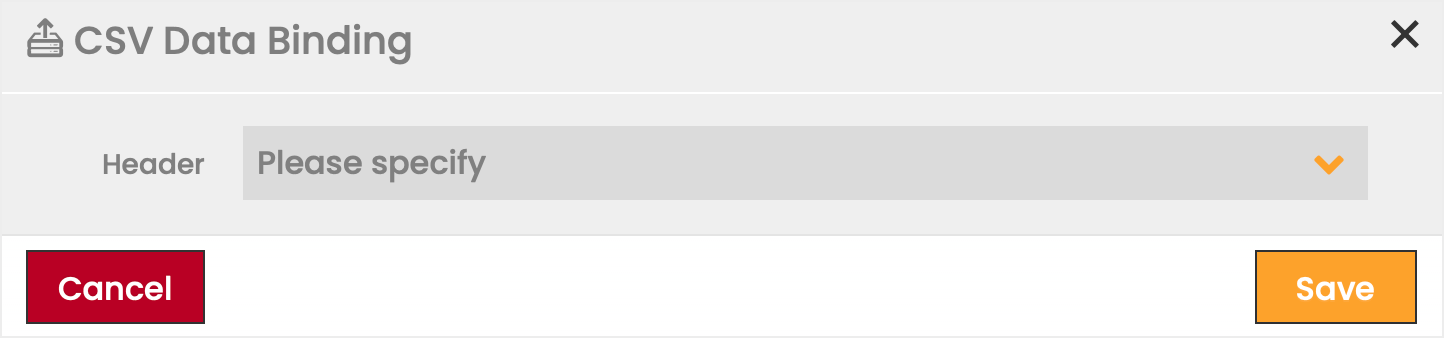
- Select the corresponding header from the available options in the dropdown list.
If a previous binding has to be removed, select the empty row in the dropdown. - Click Save to apply your selection.
- Repeat the binding of the headers for all columns.
If you wish to save the Delimiter, Skip N Rows, and binding of headers as a configuration for future use, refer to the How to store binding as configuration section below.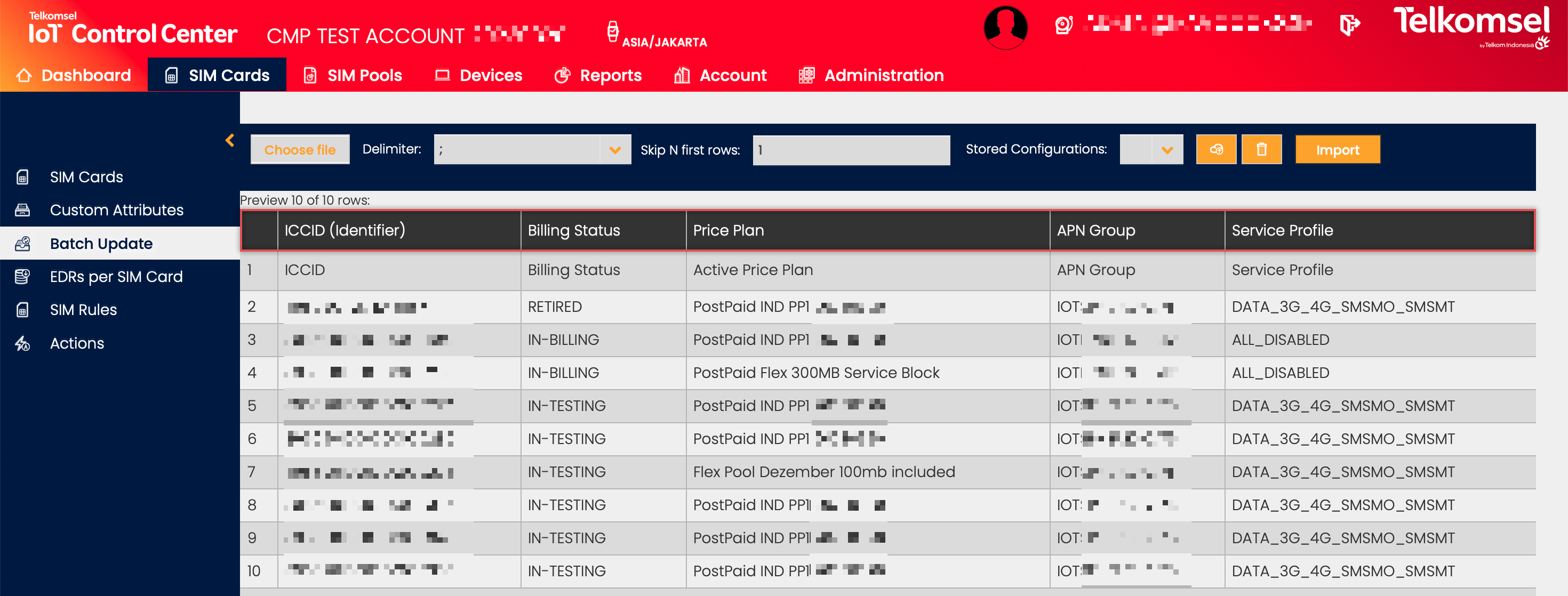
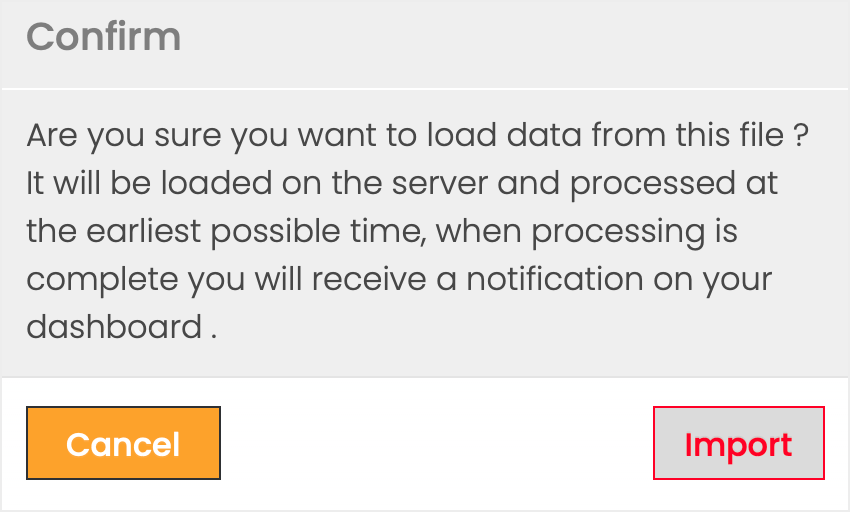
- Click Import to carry out the Batch Update.
- Confirm the import.
Batch Update with a file created by User as input
- Create the file you wish to use to modify SIM's attributes. The file must contain the ICCID as the identifier of the SIM Cards involved.
Note: Batch Update does not allow you to modify all of a SIM's attributes. Refer to the General Description - SIM Export Fields table above for a list of properties that can be changed using Batch Update. - Save as a CSV file.
- Click the Import from CSV icon in the Object Functions Menu.
Note: The Import from CSV option completes the same functions as the Batch Update subtopic available in the side menu bar. - Define a Delimiter and Skip N Rows for the CSV data.
- Click on Click to specify to bind the columns of the selected file to the corresponding headers of the SIM Grid.
- Select the corresponding header from the available options in the dropdown list.
If a previous binding has to be removed, select the empty row in the dropdown. - Click Save to apply your selection.
- Repeat the binding of the headers for all columns.
If you wish to save the Delimiter, Skip N Rows, and binding of headers as a configuration for future use, refer to the How to store binding as configuration section below. - Click Import to carry out the Batch Update.
- Confirm the import.
How to store binding as configuration
The Batch Update process allows Users to store their configuration of the delimiter, the number of rows to be skipped, and the binding of headers for future use.
To store binding as configuration:
- Define a Delimiter and Skip N Rows for the CSV data.
- Click on Click to specify to bind the column of the selected file to the corresponding headers of the SIM Grid.
- Select the corresponding header from the available options in the dropdown list.
If a previous binding has to be removed, select the empty row in the dropdown. - Click Save to apply your selection.
- Repeat the binding of the headers for all the columns.
- Click on the Save
 icon to save the configuration for future use.
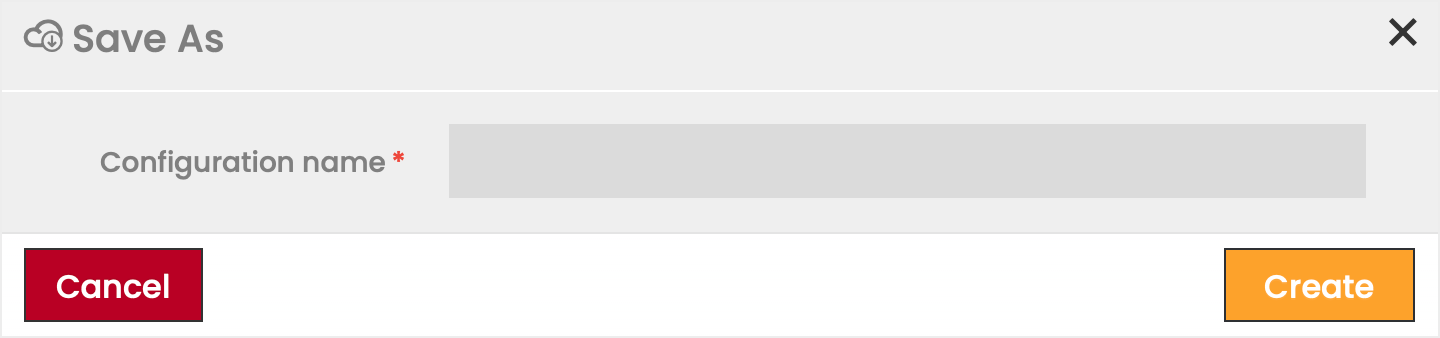
 - Name the configuration to be saved.
- Click Create to save the configuration.
To apply a stored configuration:
- Choose a file to be imported.

- Select the configuration to be used from the available options in the Configuration dropdown list.
- The previously defined Delimiter, Skip N Rows, and the bindings are applied to the selected file.
